File Library
Explore Grasshopper definitions, example files, tutorials and reusable computational design files.
34 matching files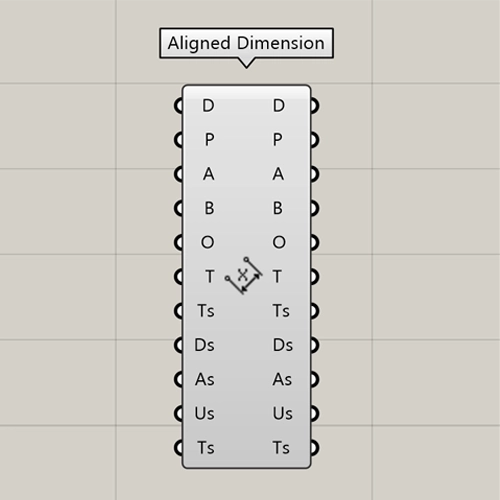
Aligned Dimension (Rhino 8)
Automate and adjust dimensions in Grasshopper with the new Aligned Dimension component in Rhino 8. Ensure real-time accuracy and precision in your parametric designs.
View file →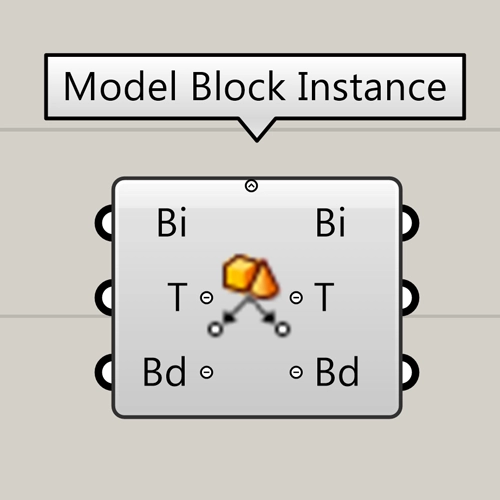
Model Block Instance (Rhino 8)
Easily manage repetitive models with the Model Block Instance component in Rhino 8. Duplicate block instances efficiently while maintaining precision and consistency in complex designs.
View file →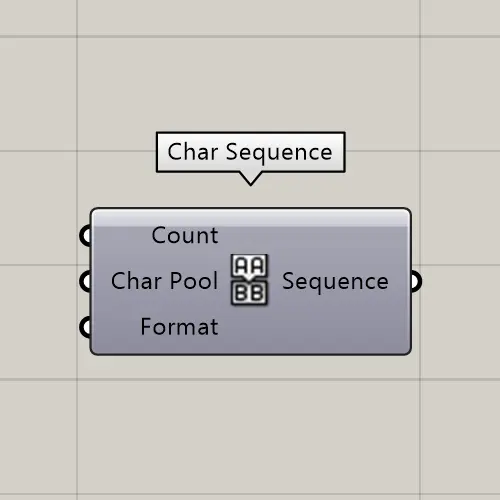
Char Sequence
Generate custom parametric text tags effortlessly with the Char Sequence component in Grasshopper. Define character pools and tag counts for dynamic, streamlined design workflows.
View file →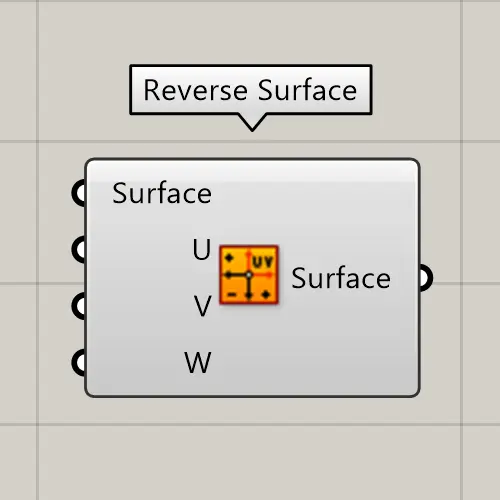
Reverse Surface (Rhino 8)
Take control of surface parameterization with the Reverse Surface component in Rhino 8. Reverse U, V, or normal directions to optimize evaluation, extraction, and panelization workflows.
View file →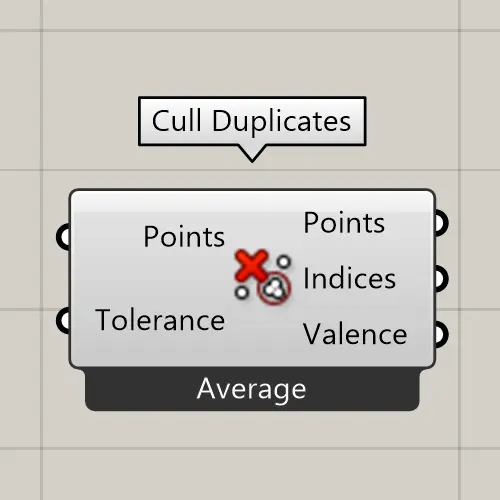
Cull Duplicates
Clean up your point data in Grasshopper with the Cull Duplicates component. Remove, retain, or average duplicate points effortlessly for clean and precise designs.
View file →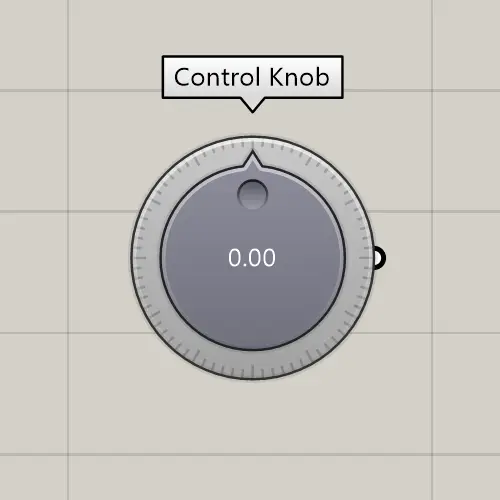
Control Knob
Explore the Control Knob in Grasshopper: an intuitive radial input tool perfect for angles, rotations, and directional parameters. Customize its range and precision with ease.
View file →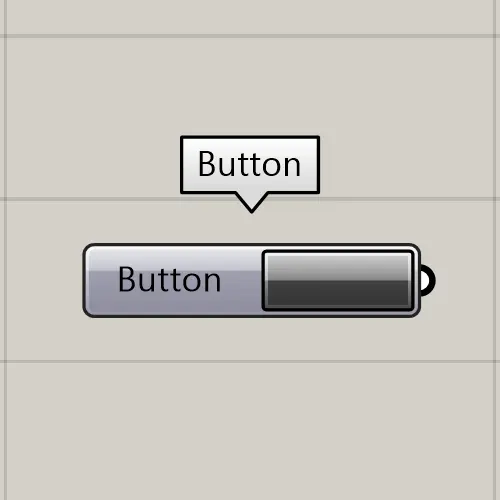
Button States
Discover the versatility of the Button component in Grasshopper. Customize its states, output different data types, and streamline your definitions effortlessly.
View file →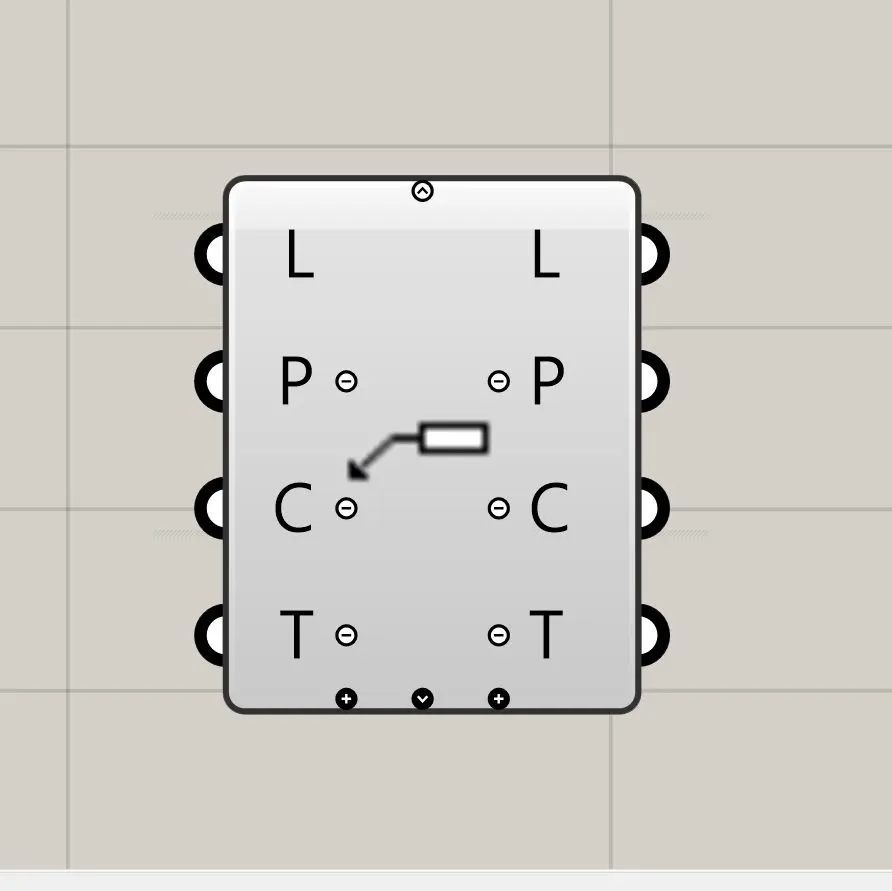
Leader (Rhino 8)
Add clarity to your Grasshopper models with the Leader component in Rhino 8. Create arrows with text to label and annotate your designs seamlessly.
View file →
Group Content (Rhino 8)
Organize your Grasshopper data effortlessly with the Group Content component in Rhino 8. Learn how to group and filter data by attributes like type or color to simplify complex designs.
View file →
Dot product
Master the Dot Product in Grasshopper to analyze vector alignment, optimize your designs, and explore how this simple tool can transform your parametric projects.
View file →
Clamp Number (Rhino 8)
The Clamp component, introduced in Rhino 8 (Grasshopper), helps you constrain numbers within specific lower and upper limits. This functionality is particularly useful when creating definitions for other users, ensuring their ...
View file →
Regions
Are you finding it difficult to extract closed shapes from overlapping lines in Grasshopper?It’s a common challenge when working with intricate linework.
View file →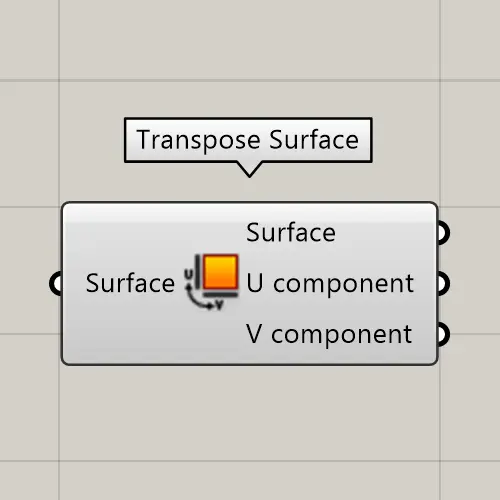
Transpose Surface (Rhino 8)
The Transpose Surface component, introduced in Grasshopper for Rhino 8, swaps the U and V parameters of the input surface.While this operation does not visually alter the surface, it changes its parameterization.
View file →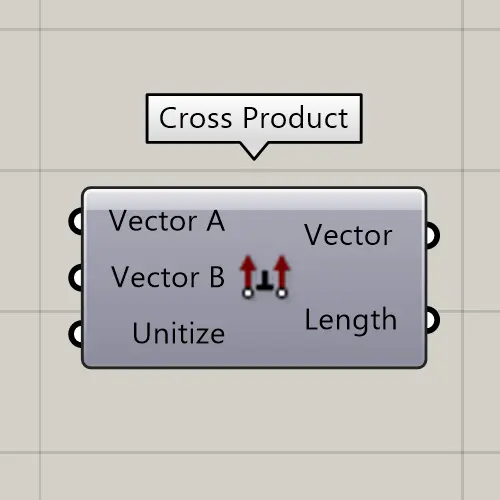
Cross Product
This component computes the cross product of two input vectors.But have you ever considered its practical use for parametric design?The resulting vector is always perpendicular to both input vectors.
View file →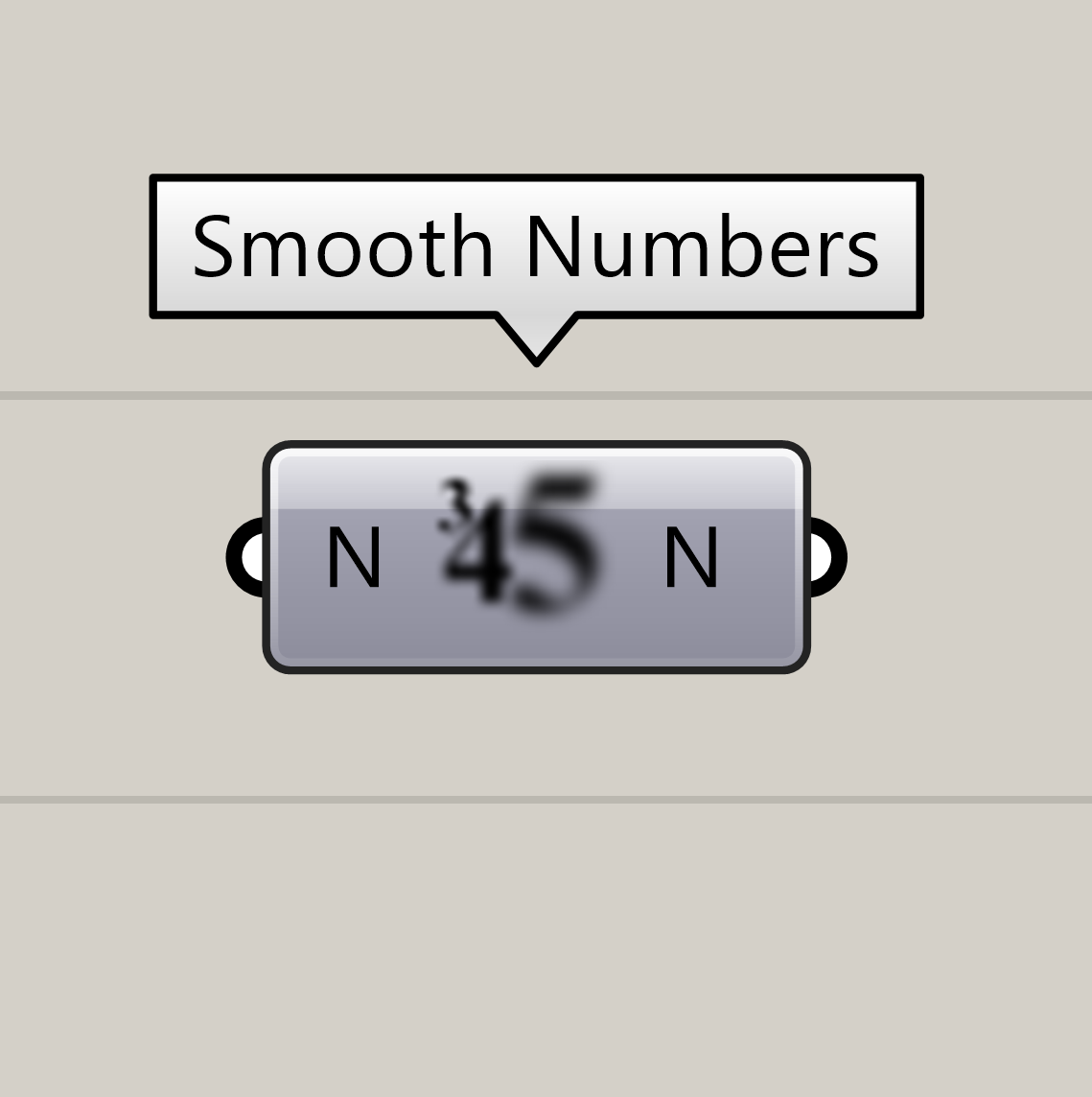
Smooth Number
Discover how to create seamless transitions between numerical values with the Smooth Number component.
View file →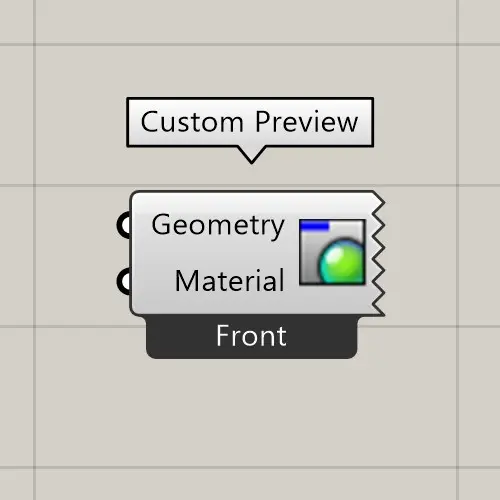
Custom Preview
The "Custom Preview" component includes an additional option to select specific target viewports. To access this feature, right-click on the component's icon to open its menu.
View file →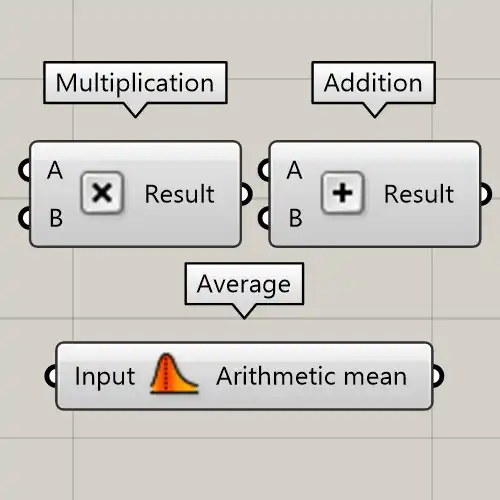
Math Components
Many Grasshopper components in the Math tab accept a generic data parameter as input.
View file →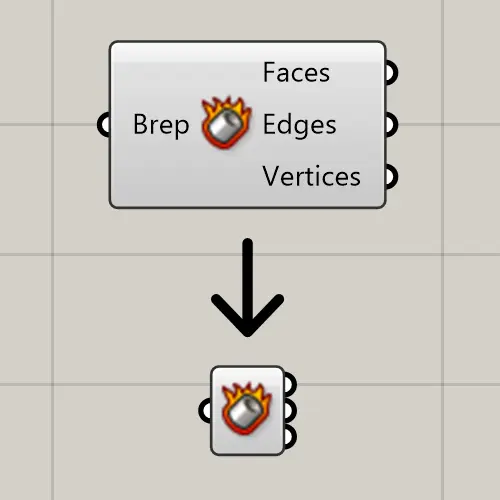
Simplify (Rhino 8)
A new feature called "Simplify Component" has been introduced in Grasshopper for Rhino 8. This feature allows components to shrink, simplifying their appearance on the Grasshopper canvas and resulting in cleaner, more organized definitions.
View file →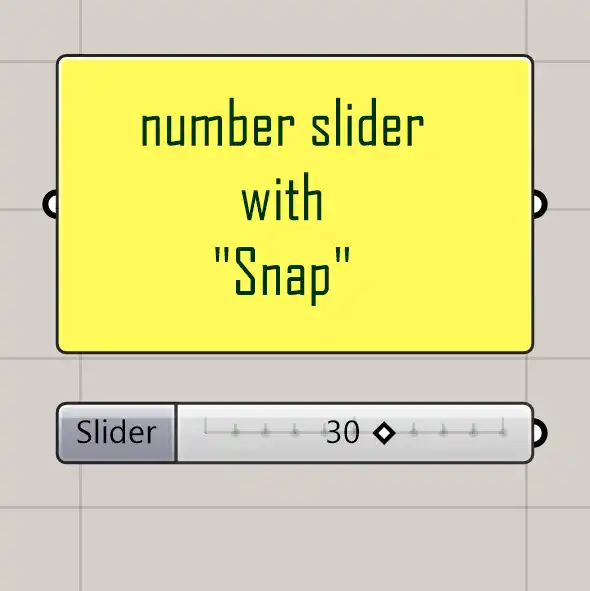
Number Slider Snap
Did you know you can define snap values for the Number Slider in Grasshopper? This handy feature allows you to restrict slider movement to specific intervals, ensuring precision in your parametric designs. A simple yet powerful way to enhan
View file →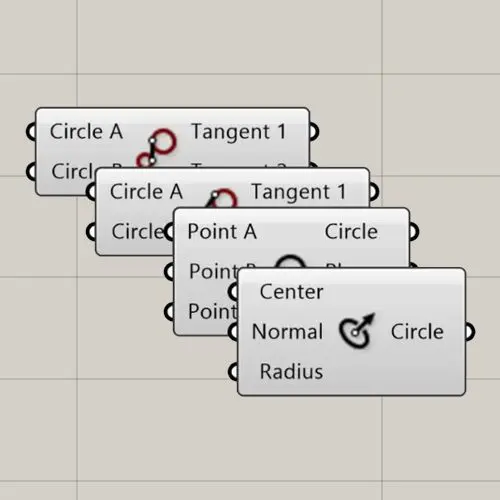
Picking Components
You have surely tried picking GH components from the component's bar above the canvas. Did you know that Grasshopper has a feature for picking multiple components? By holding the "Shift" key on your keyboard and clicking on component icons,
View file →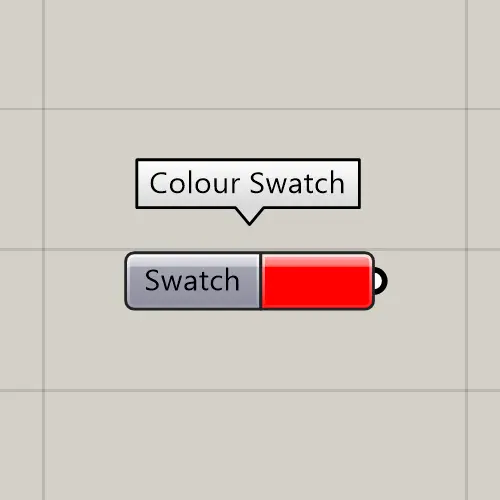
Auto Swatch
The Metahopper plugin includes a special component called Auto Swatch, which generates a generic color swatch.
View file →
Quick Scribble
Scribble is a unique Grasshopper component used for adding quick notes to the canvas. Once a scribble is created, you can double-click it to enter your desired text.
View file →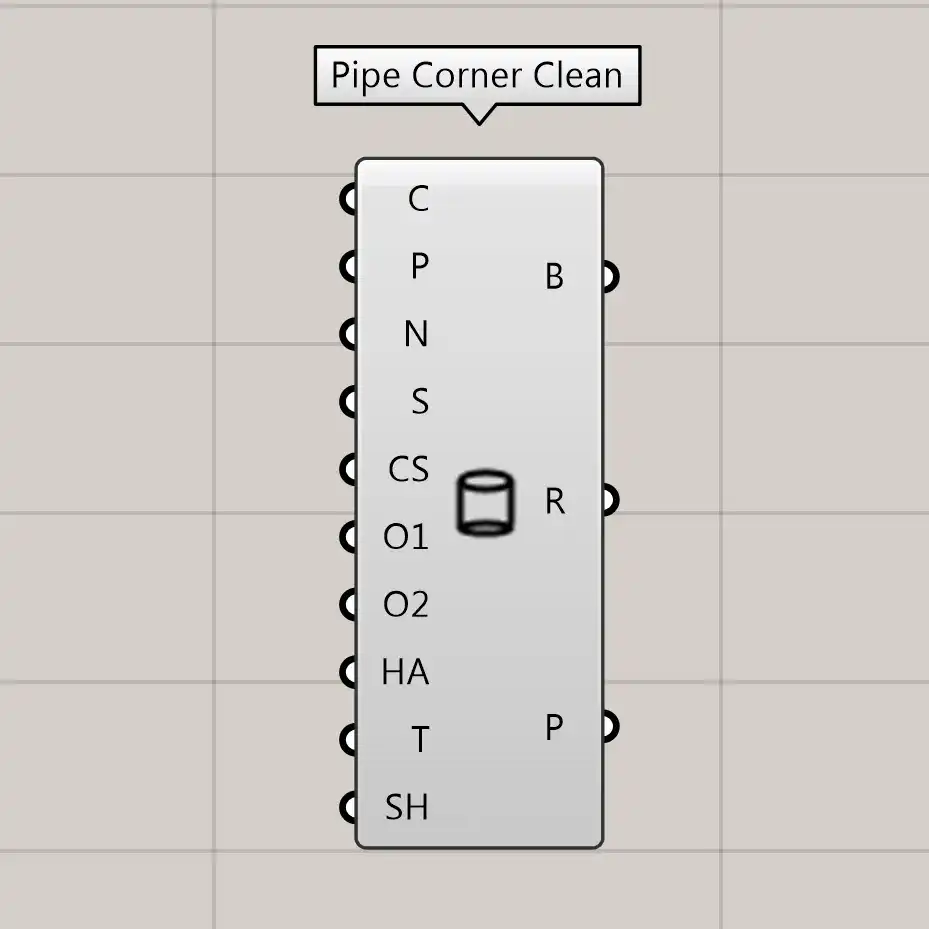
Pipe Corner Clean
In Grasshopper, the Pipe component often struggles to create clean geometry at sharp angles, resulting in overlaps or messy intersections.
View file →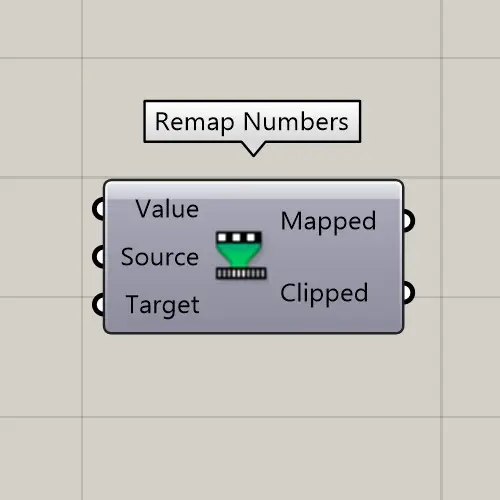
Clipped Remap
Ever wondered about the use case of the clipped output in the "Remap Numbers" component? It ensures that values outside the "Source" domain are clipped to the minimum and maximum limits of the "Target" domain.
View file →