File Library
Explore Grasshopper definitions, example files, tutorials and reusable computational design files.
2,172 matching files
Button States
Discover the versatility of the Button component in Grasshopper. Customize its states, output different data types, and streamline your definitions effortlessly.
View file →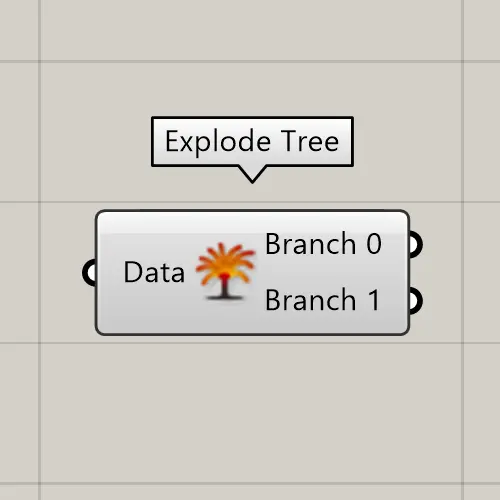
Explode Tree
Quickly extract branches from data trees with the Explode Tree component in Grasshopper. Learn how to unlock its full potential with the Match Outputs feature.
View file →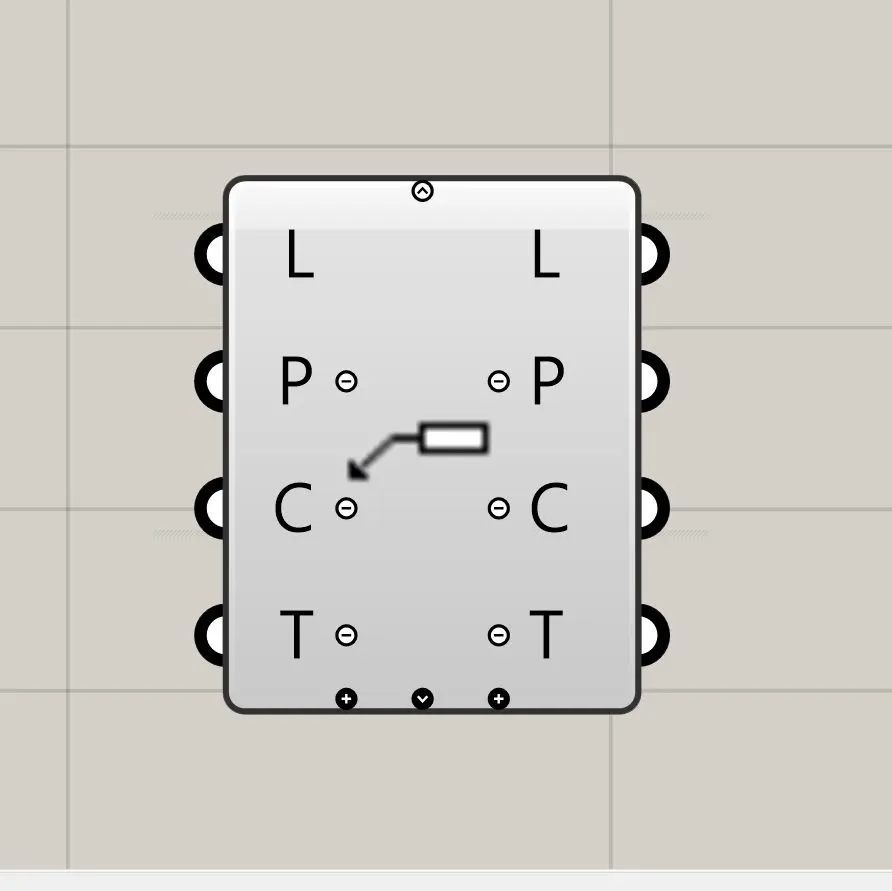
Leader (Rhino 8)
Add clarity to your Grasshopper models with the Leader component in Rhino 8. Create arrows with text to label and annotate your designs seamlessly.
View file →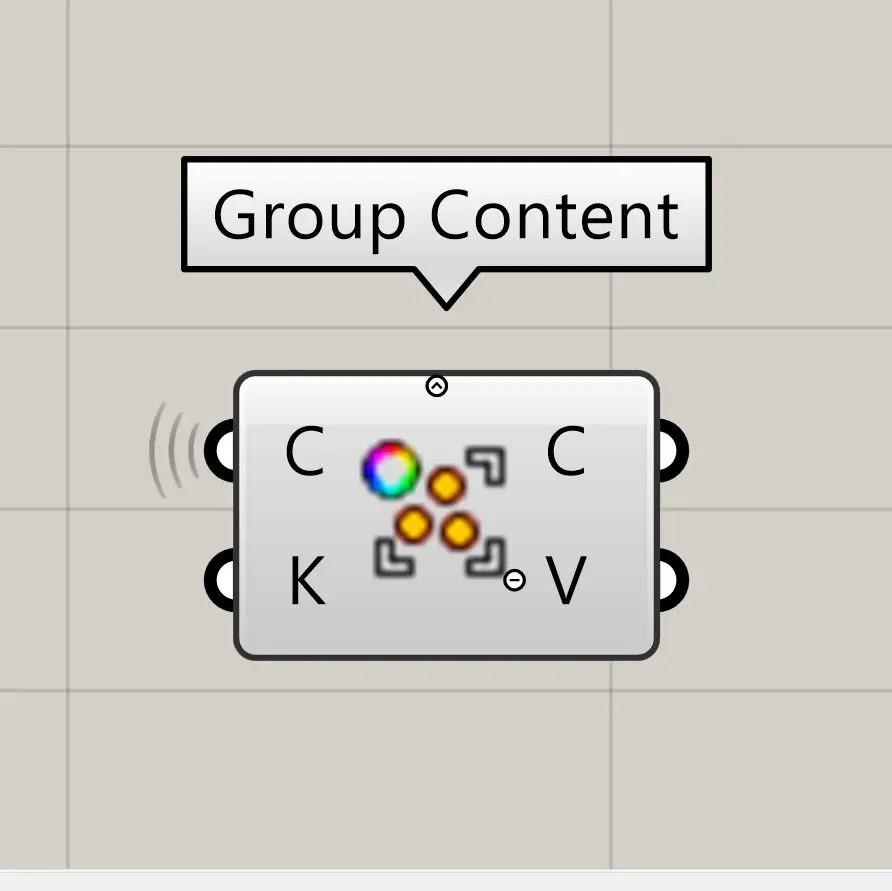
Group Content (Rhino 8)
Organize your Grasshopper data effortlessly with the Group Content component in Rhino 8. Learn how to group and filter data by attributes like type or color to simplify complex designs.
View file →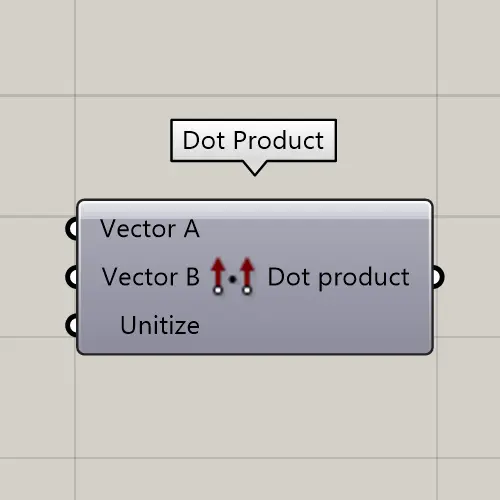
Dot product
Master the Dot Product in Grasshopper to analyze vector alignment, optimize your designs, and explore how this simple tool can transform your parametric projects.
View file →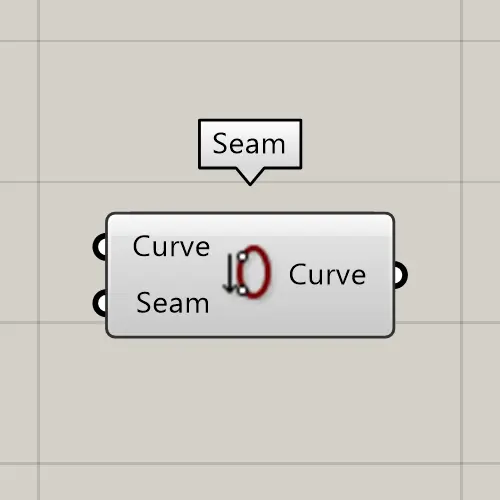
Curve Seam
In Rhino, a closed curve forms a complete loop, but mathematically, it still has a specific point where it begins and ends. This point is called the seam.The Seam component in Grasshopper lets you move this ...
View file →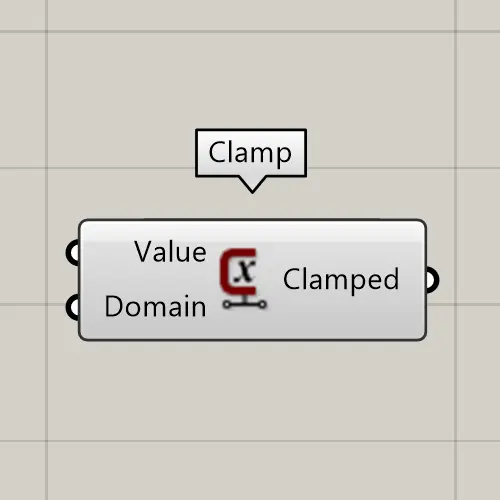
Clamp Number (Rhino 8)
The Clamp component, introduced in Rhino 8 (Grasshopper), helps you constrain numbers within specific lower and upper limits. This functionality is particularly useful when creating definitions for other users, ensuring their ...
View file →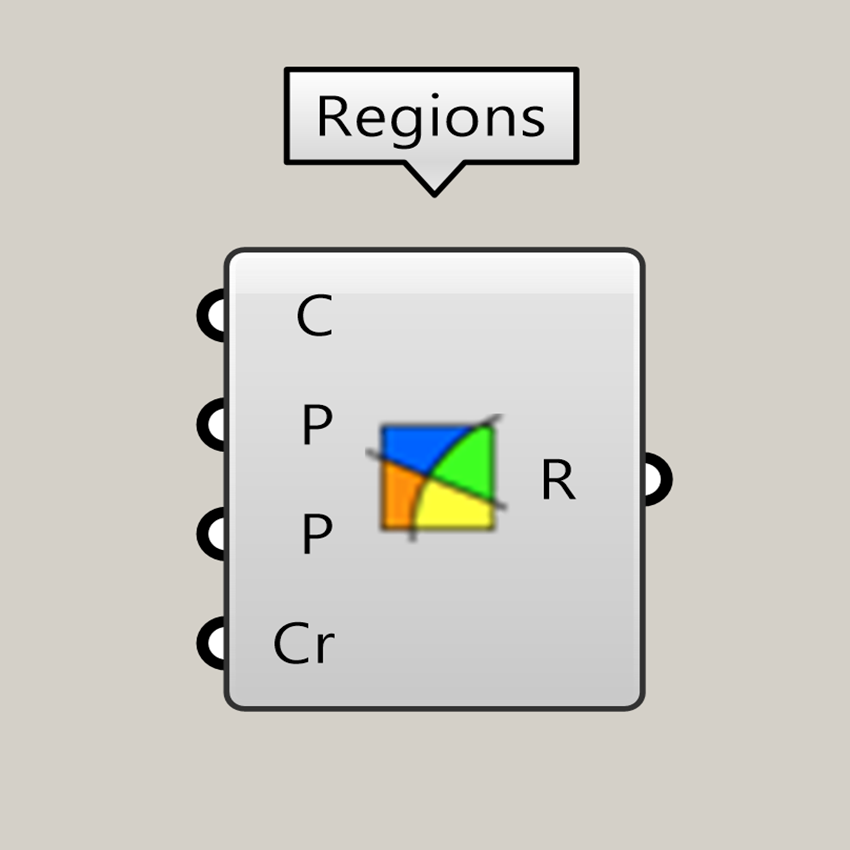
Regions
Are you finding it difficult to extract closed shapes from overlapping lines in Grasshopper?It’s a common challenge when working with intricate linework.
View file →
Extend to point
Have you ever needed to extend a curve in Grasshopper but struggled to control the direction?Instead of relying on trial and error, there's an easier and more efficient method.
View file →
Transpose Surface (Rhino 8)
The Transpose Surface component, introduced in Grasshopper for Rhino 8, swaps the U and V parameters of the input surface.While this operation does not visually alter the surface, it changes its parameterization.
View file →
Cross Product
This component computes the cross product of two input vectors.But have you ever considered its practical use for parametric design?The resulting vector is always perpendicular to both input vectors.
View file →
Prune Tree
Prune Tree is a versatile yet often overlooked component for working with data trees.It allows you to remove branches from a tree based on the number of data items they contain.
View file →
Closest Object
The Curve Nearest Object component in Grasshopper offers a powerful and unique capability: it allows multiple data types (e.g., points, curves, surfaces, and meshes) to be connected simultaneously as inputs. The component then determines th
View file →
Smooth Number
Discover how to create seamless transitions between numerical values with the Smooth Number component.
View file →
Polar Sorting
The 'To Polar' component analyzes the polar position of points relative to a base plane. When working with a set of disordered points that you want to organize in polar order, you can use the Phi output from this component to sort them. Not
View file →
Renumber Tree Branches
The Tree Branch component is a powerful tool for extracting specific branches from a data tree. It also includes a hidden feature in its component menu that allows you to renumber the output branches.
View file →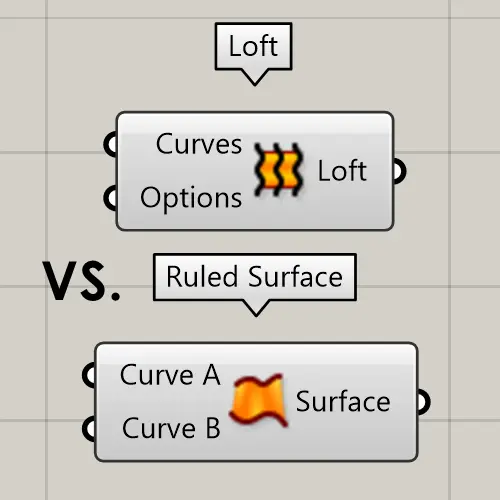
Loft vs Ruled Surface
Mathematically, the Loft and Ruled Surface components operate differently. Loft can process a list of curves, whereas Ruled Surface is limited to just two curves. However, when creating a surface between two curves, both components may yiel
View file →
Trim Tree
View file →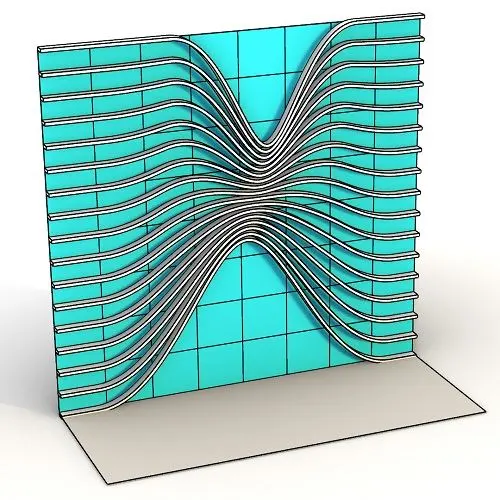
Wave Facade
In this Grasshopper tutorial, you will learn how to design a parametric wave facade with controllable attractors at the top and the bottom.
View file →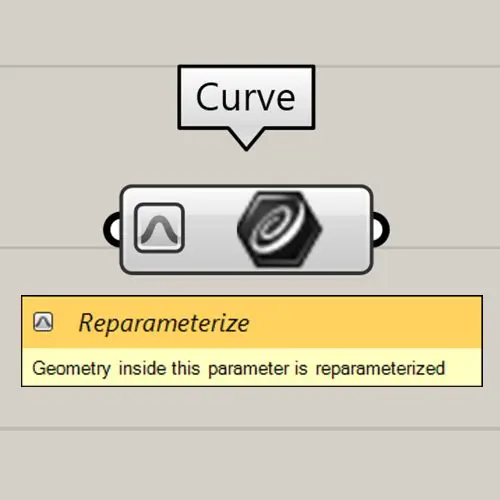
Normalized Parameters
For instance, a parameter value of 0.5 might not be halfway along the curve’s length – or even close to it. This happens because reparameterization redistributes the parameter values without considering the curve's physical dimensions.
View file →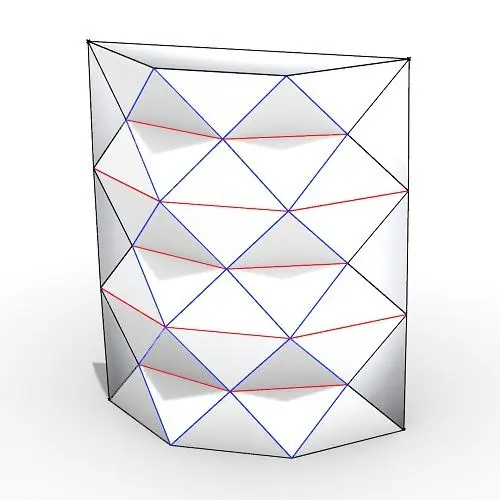
Origami Building
In this Grasshopper tutorial, you will learn how to design an origami-inspired building using the Crane plugin to fold or unfold the initial pattern and generate new design ideas.
View file →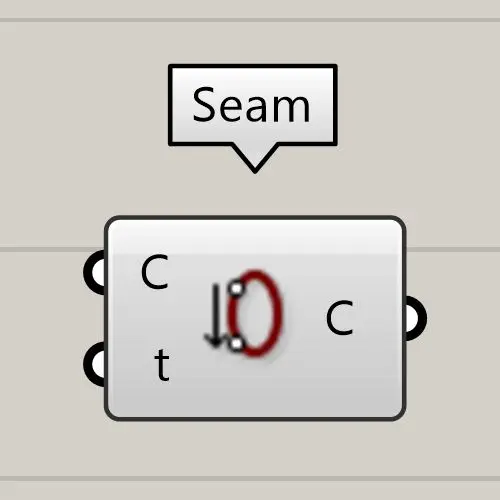
Curve Seam
You can adjust the seam of a closed curve using the "Seam" component. As shown in the example, by changing the seam location of two rectangles, the connection of their division points (visualized as lines) also changes.
View file →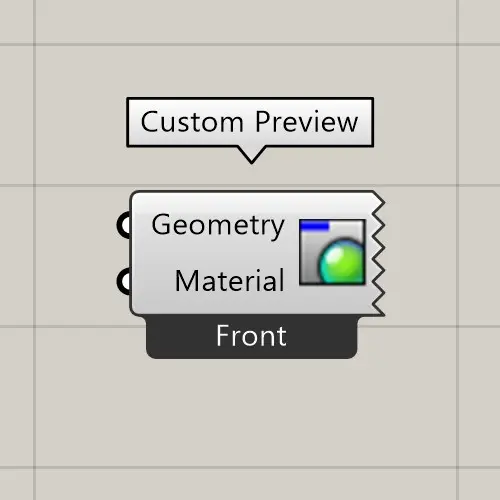
Custom Preview
The "Custom Preview" component includes an additional option to select specific target viewports. To access this feature, right-click on the component's icon to open its menu.
View file →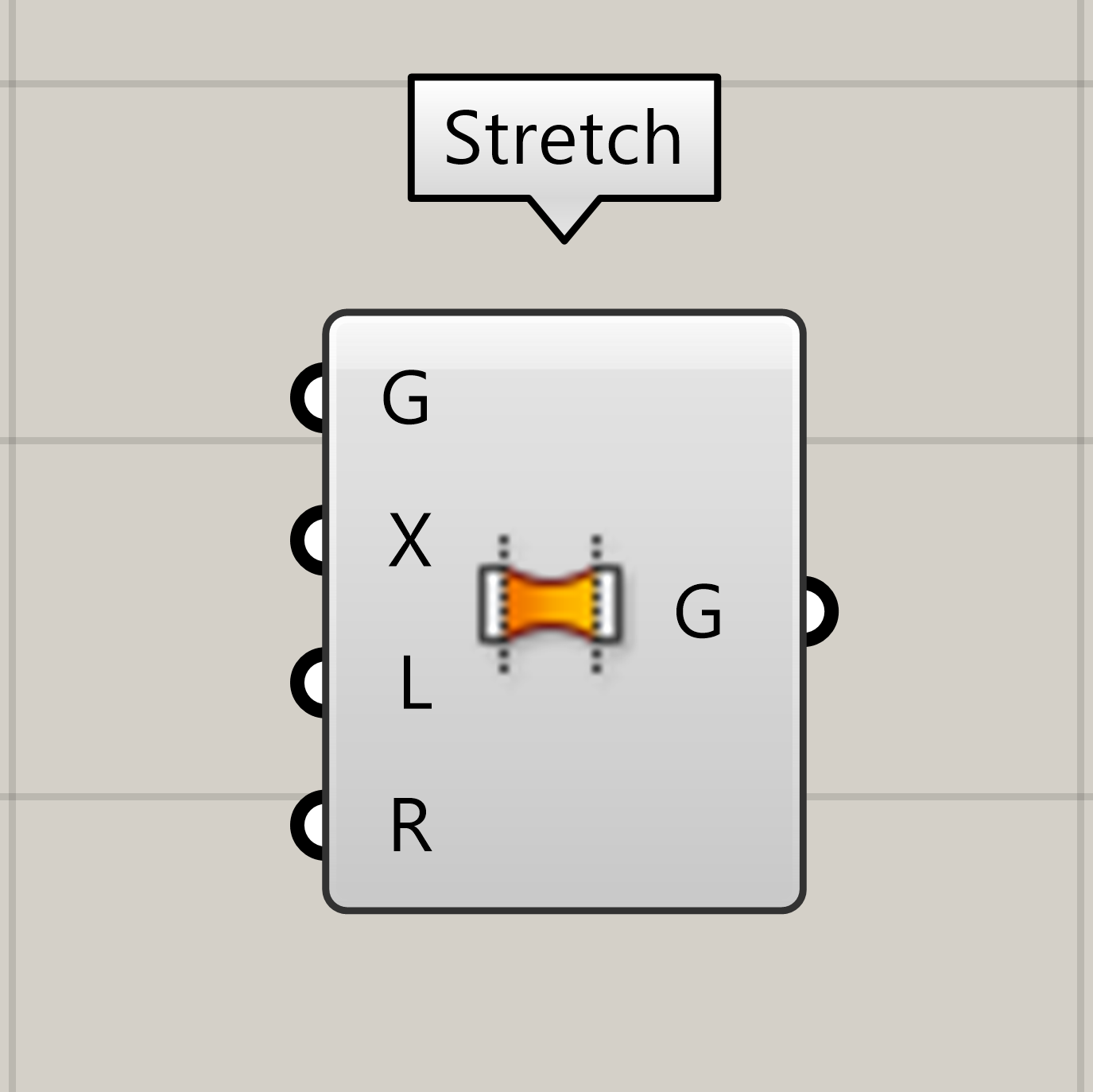
Stretch Component
The Stretch component can be used to extend or move a single-curved surface. This dual functionality makes it easy to create flexible design changes.
View file →